Security & Compliance
Microsoft 365 governance with Purview: sites, teams, sharing.
Every site and team has owners, a Purview sensitivity label and a planned end. Before Copilot starts, owners review their own sharing from a report.
For companies with many sites and teams grown over time that want owners, sharing and expiry rules settled before Copilot starts.
- Microsoft Purview
- SharePoint Advanced Management
- SharePoint Online
- Microsoft Teams
- Microsoft 365 Groups
- Entra ID
- Microsoft 365 Archive
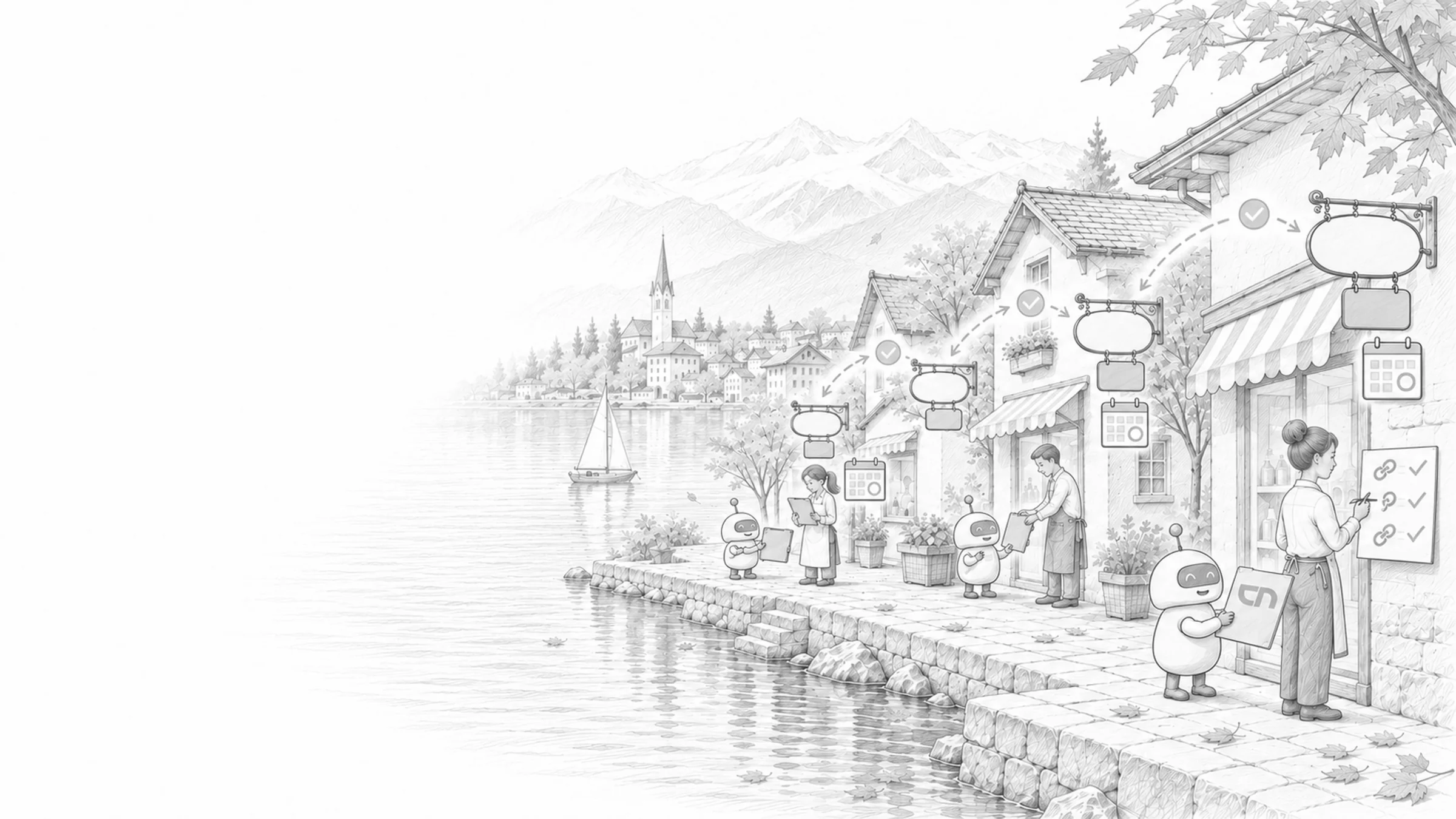
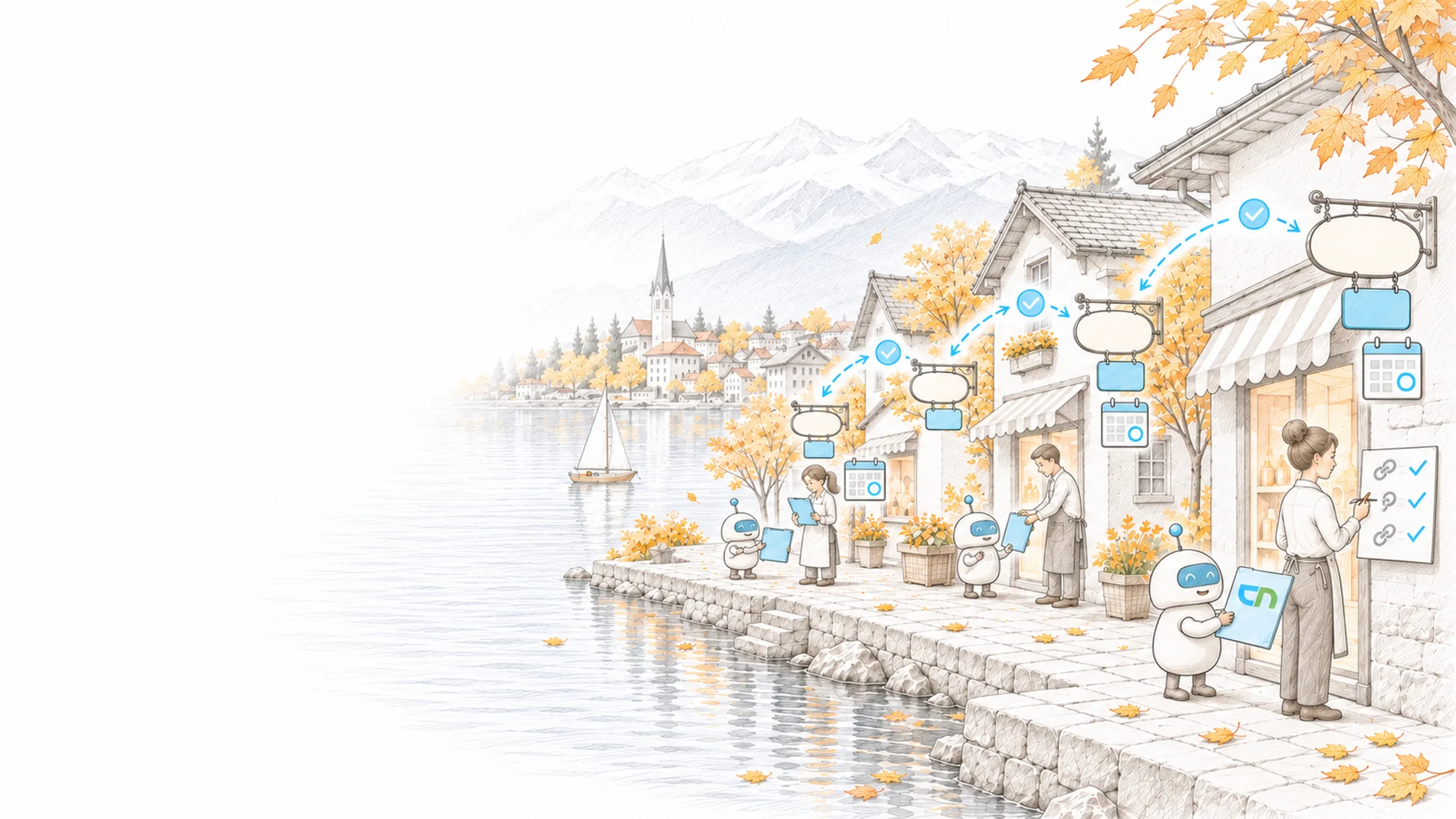
An email to the site owner
The owner of a project site gets an email: nobody has opened the site for months. He confirms in the email that it is still needed; without a reply it would have gone read-only and later to the archive. A team lead opens the list of her site's files shared with all employees and restricts two of them before Copilot starts.
Ownership, names, labels, lifecycle
The rules apply across the whole tenant; decisions stay with the owners. Every site policy first runs as a simulation, so your IT sees which sites it would hit before any email goes out. Ownership and sharing come first, because Copilot builds on them; handover is set up so your IT adjusts policies and reads the reports on its own.
- OwnershipEvery site and team has at least two owners; a policy reports sites that fall below that, and for teams without an owner Microsoft 365 asks the most active members whether they will take over.Result: every workspace has a person who decides on members and content.
- Creation and namesWho creates teams and sites, which prefix a group gets by department or location and which words are blocked apply alike in Teams, SharePoint, Outlook and Planner.Result: the name shows what a team belongs to, in the address book too.
- LifecycleA policy for inactive sites notifies the owners, sets a site to read-only if nobody replies and then archives it; groups renew themselves when they are active, and owners confirm confidential sites at regular intervals.Result: unused sites go to the archive with their owners' knowledge, active ones stay untouched.
- Sharing and guestsSharing levels per site, links set to specific people by default, guest access with an expiry date and guests only in sites an owner opens for them.Result: each site has a defined rule for who shares externally, and guest access ends by itself.
- Labels from PurviewSensitivity labels for teams, groups and sites set privacy, guest access, external sharing and access from unmanaged devices, and retention policies decide how long content stays. The rules under the FADP are on the data protection page.Result: a site labelled confidential cannot be opened to the outside by accident.
- Review before CopilotA report shows sites open to all employees or to very many people; their owners receive an access review listing the affected files, and sensitive sites stay out of search and Copilot until they are cleaned up.Result: Copilot answers from what a person is meant to see.
- Admin rolesSharePoint, Teams and group administration separated by task, a dedicated role for the governance reports and a change history for site and tenant settings.Result: every setting has a responsible role, and every change can be traced.
What your organisation decides
For each area, a person who decides on sites and teams, and a list of specially protected content. Decisions on guests: who invites, how long access lasts, who extends it. A naming rule your areas understand, and who creates teams from now on. Retention periods are set by your data protection lead; we carry them into the lifecycle rules.
What stays visible in the admin center
Policies for ownership, inactivity and lifecycle, active in your tenant, with the report from the simulation. Sharing and guest settings, tested with authorised and unauthorised accounts, a guest and a removed member. A first round of access reviews with the owners of the most widely opened sites, and a short rulebook for IT and owners. Following up on the reports can be handed to Support & Operations.
Sound familiar? Tell us where you stand today.
ContactWhat's new.
As of: 9 October 2026
- As of 7 May 2026
Labels protect whole teams and sites.
Sensitivity labels can be applied to teams, Microsoft 365 groups, SharePoint sites, Viva Engage communities and Loop workspaces. They set privacy, guest access, external sharing and access from unmanaged devices; the documents inside do not inherit the label automatically.
Source: Microsoft Learn: Sensitivity labels for groups and sites - As of 30 June 2026
One Copilot licence unlocks site governance.
As soon as one person in the tenant holds a Microsoft Copilot licence, SharePoint administrators get the policies for ownership, inactivity and owner attestation, the sharing and permission reports and the site access review. A base plan such as Microsoft 365 E3 or E5 is required. Restricted site creation by apps still needs the SharePoint Advanced Management Plan 1 add-on.
Source: Microsoft Learn: SAM features in Microsoft Copilot licenses - As of 1 July 2026
Site policies end in read-only and archive.
The policies for ownership, inactivity and attestation run as a one-off simulation with a report or in active mode with recurring notifications that owners answer directly in Outlook. If no reply comes, the policy can set the site to read-only and archive it with Microsoft 365 Archive after a set period. No site is deleted directly.
Source: Microsoft Learn: SharePoint site lifecycle management - As of 9 July 2026
Site access review: owners clean up their own sharing.
From the reports on sharing links, on content shared with all internal users and on site permissions, SharePoint administrators start a review for up to 100 sites at once. Owners see the most widely permissioned items first, adjust access and close the review with a comment. OneDrive is not included.
Source: Microsoft Learn: Site access review
Governance for every platform.
The same questions in three environments: who owns what, who can reach what and how you prove it.
- Governance
Microsoft 365
Ownership, lifecycle and sharing for sites and teams, Purview labels and the sharing review before Copilot.
- Governance
Power Platform
Environments, connector data policies, pipelines and an inventory of every app, flow and agent.
Power Platform - Governance
AI/SI
Agent inventory, data in Copilot, prompt logs and the legal frame for AI in Switzerland.
AI/SI
Governance in context.
The platform pages behind the policies, and two ways to check your tenant yourself.
Sites, teams and permissions planned as one environment.
Microsoft TeamsWhere owners see notices on expiry and ownership.
Entra IDGroups, guests and roles that every policy builds on.
CopilotWhat Copilot reads, and with whose permissions.
Intelligent WorkplaceSelect and bound the sources for Copilot and agents.
SharePoint CheckerCheck sharing and site settings against Microsoft's recommendations.
Best practicesPatterns for structure and permissions from our projects.
Business or EnterpriseWhich Microsoft 365 plans include Entra ID P1.
Where ownership and lifecycle are already in place.
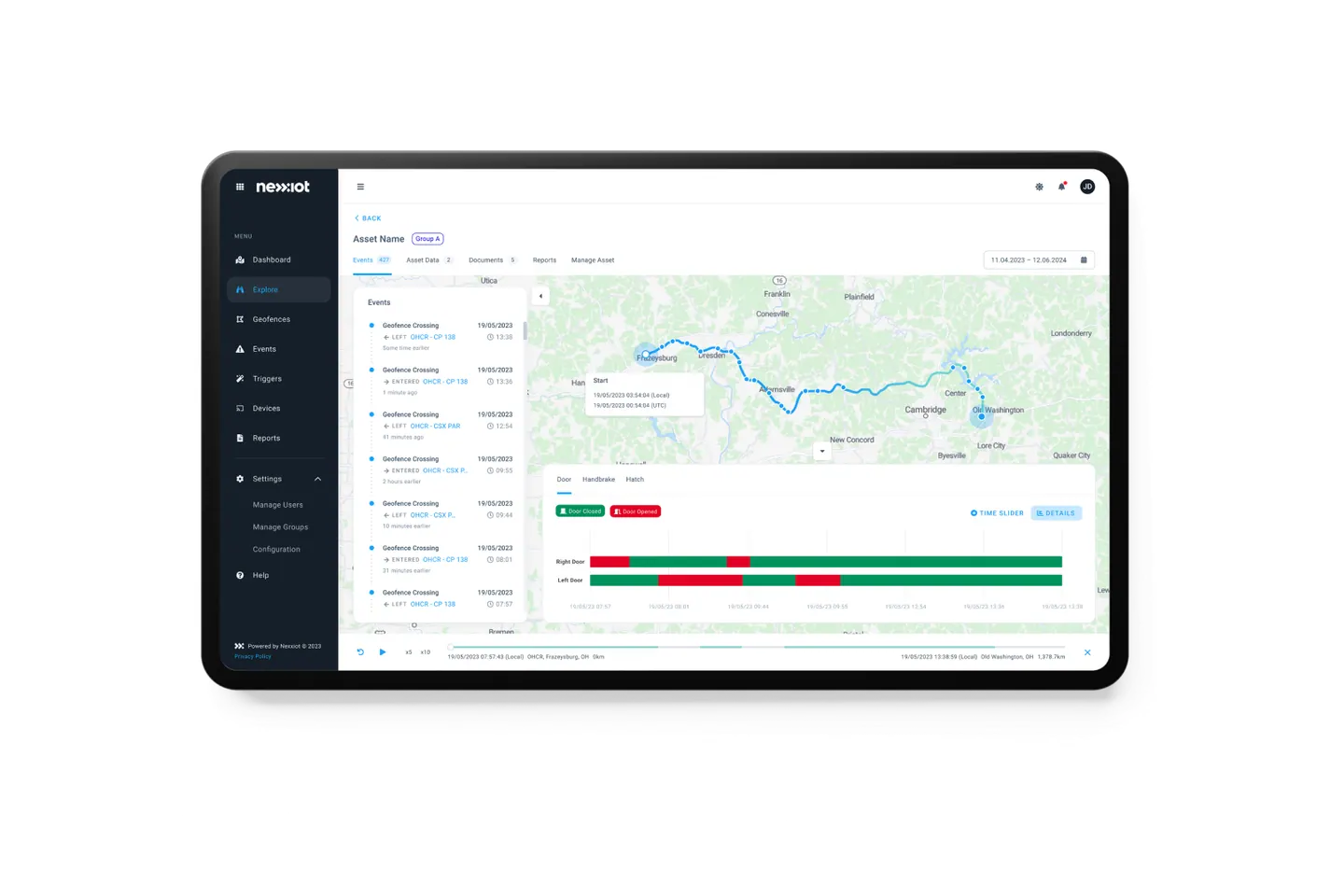
A lifecycle for project teams and rules for new storage at Sieber Partners, an inventory with a target architecture at Nexxiot.


Check storage before anything is archived.
Shows stale files, versions and possible duplicates per site and owner; budgets and scheduled scans report when storage grows again.
Related to your task
Templates for project and committee teams that meet these rules from the start.
Rollout & adoptionTrain owners and champions so the rules take hold in daily work.
Zero Trust & Identity SecuritySign-in, devices and time-limited admin rights for the same accounts.
Compliance & Data ProtectionConfidentiality, retention and deletion under the FADP.
Support & OperationsHave the governance reports read and followed up with the owners.
What IT and site owners ask before the first policies.
Which licence do the policies require?
The site policies and reports belong to SharePoint Advanced Management. As the base, Microsoft lists Office 365 E3, E5 or A5 and Microsoft 365 E1, E3, E5 or A5; the features are unlocked by a Microsoft Copilot licence in the tenant or by the SharePoint Advanced Management Plan 1 add-on. Business plans are not on that list, so with Business Premium we check what is available in the tenant before planning. Naming rule and expiry for groups require Entra ID P1, included for example in Business Premium and E3.
Does a policy delete sites without asking?
The site policies delete nothing: they notify the owners several times, set a site to read-only if nobody replies and archive it after that. The expiry policy for groups works differently: a group without activity whose owners do not renew it is deleted and can be restored for 30 days. We switch that policy on only once ownership and retention are settled.
What happens to teams whose owners have left the company?
A policy asks the most active members every week whether they will take on ownership; up to two can accept, and every acceptance is recorded in the audit log. If nobody accepts, the administrators assign an owner. Because every site and team should have at least two owners, the case rarely arises.
Do we have to clean up all permissions before Copilot?
The broadest ones first. The site permissions report shows sites open to all employees or to very many people, and their owners review first. Sites with sensitive content we take out of organisation-wide search and Copilot with Restricted Content Discovery until they are cleaned up; anyone who worked with a file recently still finds it. Regular reviews keep the rest in order.
May employees still create teams themselves?
If you want them to, yes. With a naming rule, two owners and expiry, open creation stays manageable. If you want tighter control, limit creation to one group or to a request with a template. Which option fits, we decide with you based on your existing teams.
How long do guests keep their access?
As long as you decide. Guest access to sites expires after a set period, and sharing links for guests carry an expiry date. During the regular attestation, owners see their guests and remove those who no longer work with them. How guests sign in and with which devices is governed by Zero Trust.
Agree on a useful next step
Tell us about your current workflow, the systems involved and the result you need. In our first conversation, we identify what else we need to know to plan a useful next step.