Modern Workplace
Document management in Microsoft 365 for everyday work.
Every document type has its library, template and required fields in SharePoint, and personal drafts sit in OneDrive. Version history shows who changed what.
For teams whose documents sit across a file server, OneDrive and Teams and who want one shared rule for storage and templates.
- SharePoint Online
- OneDrive
- Microsoft Teams
- Managed Metadata
- Copilot in SharePoint
- Microsoft 365 Backup
A proposal takes shape
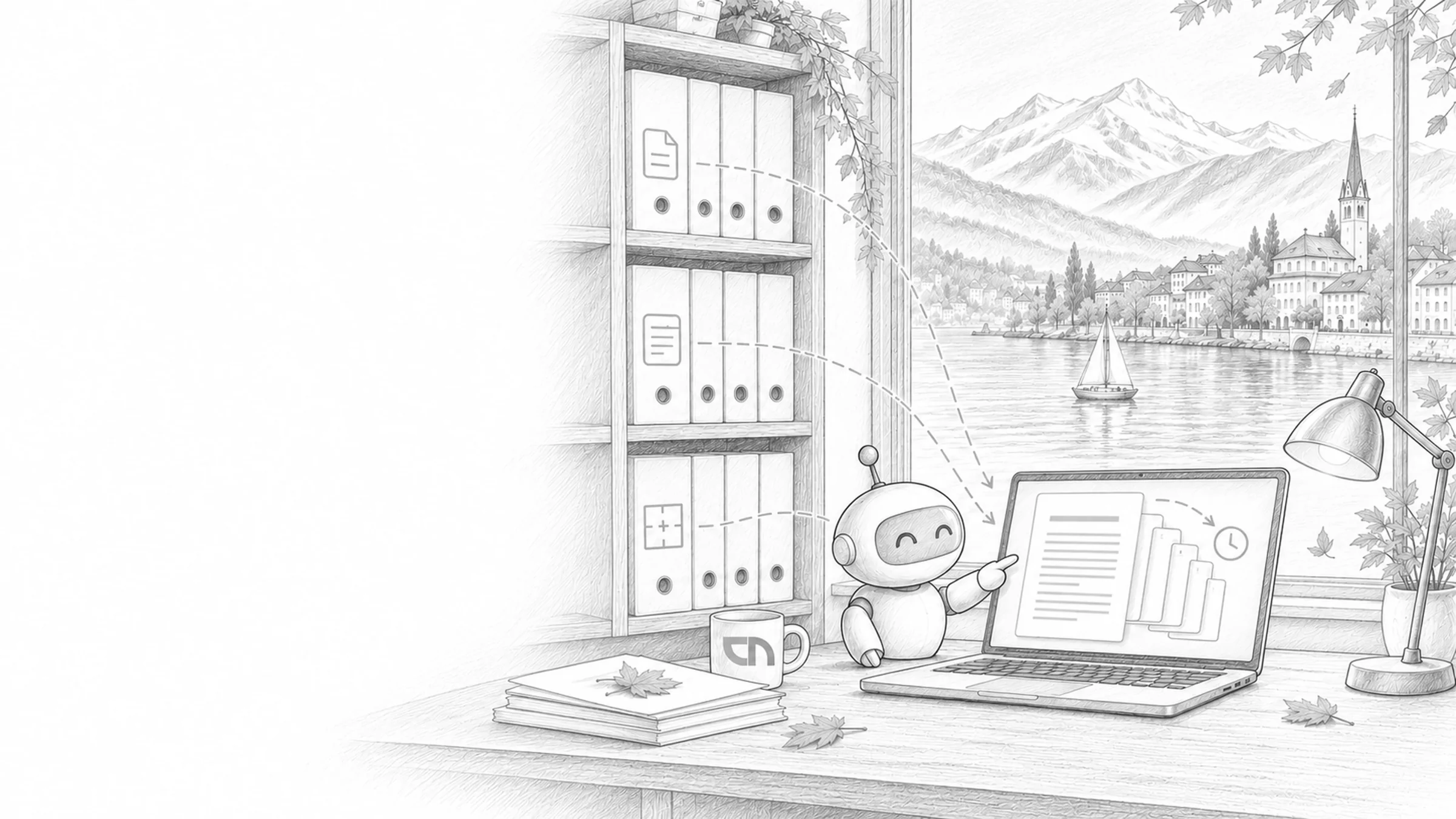
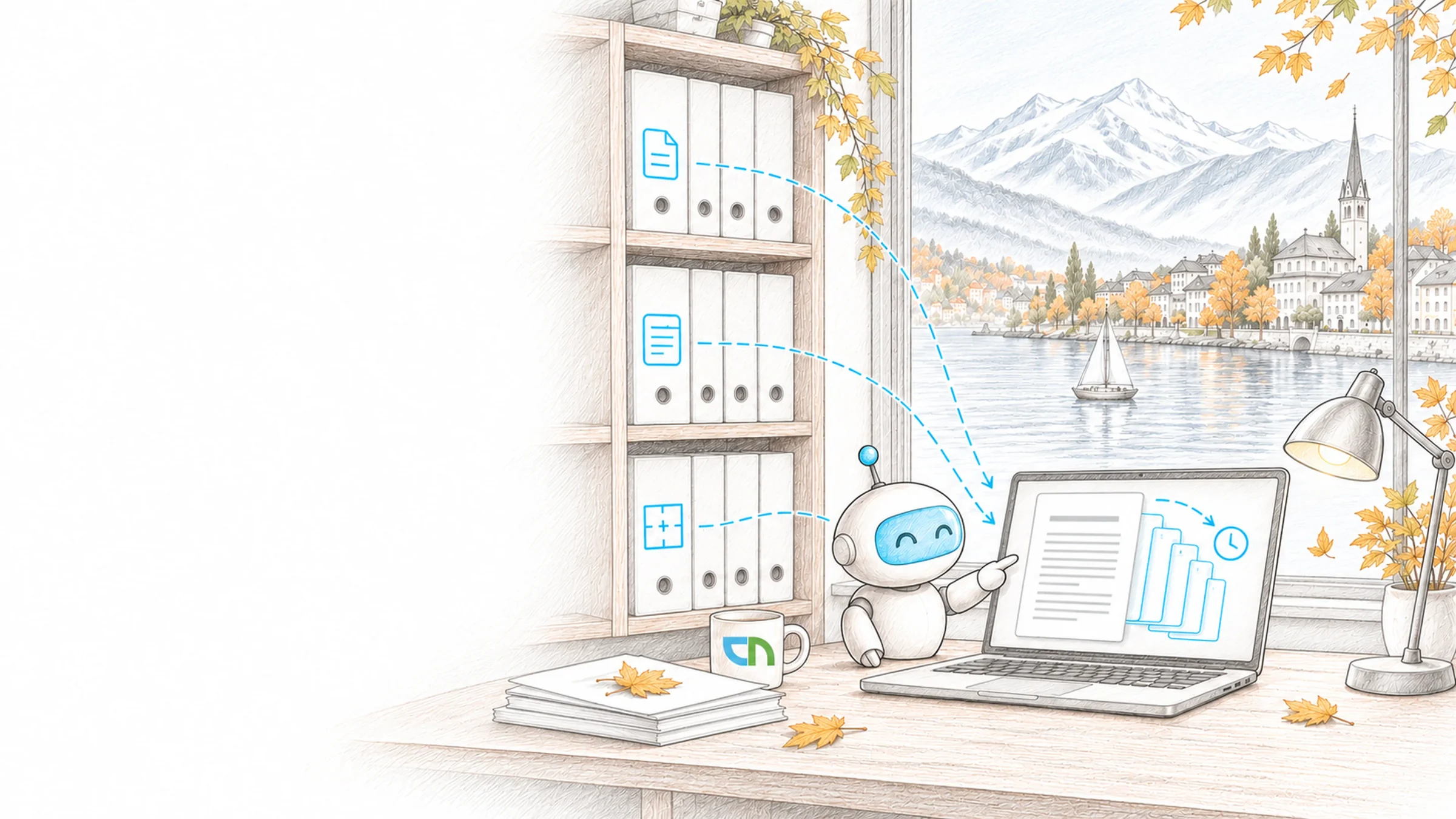
Tuesday, a proposal for a building client takes shape. The project manager picks the template in the project library, and project number and client are already in the document. Her first draft was still in her OneDrive; now two colleagues write their chapters at the same time. She shares the link in the Teams channel, and in the evening the version history shows who changed what.
File, write, find again
Each document type gets a place, required fields, a template and an owner; the building blocks below follow from that. We build them with one area and its real documents, such as the project files or customer files, and take the structure of your file server as the starting point where it has proven itself. Handover includes a filing plan your team uses to set up further areas on its own. Capture, retention periods, records and archive are covered on the enterprise content management page.
- Libraries and content typesEvery document type has a content type with required fields, values come from the shared term store, and views group by customer, project or year.Result: from the moment it is saved, a document carries the details it is filtered and found by.
- Templates and co-authoringWord, Excel and PowerPoint templates are attached to the content type and carry details such as project number or client into the document, and several people write in the same file at once. We require check-out only in libraries where a file is deliberately edited by one person after another, because it rules out simultaneous editing.Result: everyone works on the same version, in your organisation's format.
- VersionsMajor and minor versions where drafts precede approval, and a version limit per library, tuned to recovery and storage. Storage Monster shows which files hold several times their current size in version history before the limit is set.Result: every version stays traceable, and versions do not quietly outgrow the storage quota.
- Document sets and filesA contract, a person or a project as a set with shared details and its own access, created automatically at project start or when someone joins.Result: everything about one case sits together, with the same details and the same access.
- OneDrive or SharePointPersonal drafts and notes sit in OneDrive, while everything a team needs, or that should stay when someone leaves, goes into the team or project library; sync shows both in File Explorer.Result: everyone knows where a file belongs, and the team still finds it after someone has left.
- Document IDs and linksThe document ID service gives every file a fixed number, and a link with that number still leads to the file after it moves within the site. Whoever shares in Teams or by email sends a link to the file in the library.Result: references in minutes, contracts and tickets lead to the right document even after a reorganisation.
What your departments decide
One owner per document type who decides place, required fields, template and access. Your current templates and a look at the structure of your file server or existing filing, so that we carry over what has proven itself. A rule for what belongs in OneDrive and what goes into the team libraries, agreed with the departments. And a pilot group that works with real documents.
What you sign off
A filing system in your Microsoft 365, tested with your documents: create a document from the template, set details, write in it with two people at once, restore an older version, create a document set and find a file again by its document ID. A filing plan that records place, details, template and owner per document type. A training session for the owners of each area. Support and adjustments after handover can be covered by our support and operations team.
Sound familiar? Tell us where you stand today.
ContactWhat's new.
As of: 11 October 2026
- As of 25 June 2026
Versions above the limit are deleted permanently.
When versions exceed a library's limit or fall under a scheduled trim job, they are deleted bypassing the recycle bin. The limits do not apply to content under a retention policy or an eDiscovery hold, and versions of records cannot be deleted. A report shows how much storage versions take up before you trim.
Source: Microsoft Learn: Version history limits for document library and OneDrive - As of 24 September 2026
Copilot in SharePoint creates libraries from a description.
With a Microsoft Copilot licence, you describe a library's purpose when you create it and can upload a sample file. Copilot proposes a name, a description and columns that fill themselves in as new documents are uploaded; the columns and the prompts behind them can be reviewed during creation and afterwards. The feature is on by default for licensed users.
Source: Microsoft Learn: Create document library with AI
Around the filing system.
Where documents are controlled, managed or queried, and how to check your environment.
Team and project spaces where the libraries live.
Quality managementControlled documents with review date and read acknowledgement.
Contract managementContracts with deadlines, notice dates and owners.
Company BrainQuestions to your documents, answered with a source.
Microsoft 365 governanceOwnership, naming and lifecycle of sites and teams.
Intelligent WorkplaceWhich libraries Copilot and agents may use as a source.
Best practicesStructure, permissions and upkeep that have proven themselves.
SharePoint CheckerCheck your environment for structure, sharing and storage.
Filing systems that run this way.
Project documents with metadata and a project overview at M+P Ingenieure, a shared rule for OneDrive and SharePoint at Spitex Biel-Bienne, and a split into shared and personal storage at ILEVE Optics.



Check storage, protect your data.
A scan that shows stale files, version history and possible duplicates per library, and backup for Microsoft 365 with our partner MOUNT10.
Related to your task
Capture, retention periods, records and archive for your holdings.
Approvals & document workflowsReview, approve and sign, with deadlines and history.
Search & findabilitySearch scopes and results that match your metadata.
Data migrationMove file servers and existing repositories in an orderly way.
Support & OperationsHave the filing system supported and extended after handover.
On filing, versions and templates.
Folders or metadata: which do we need?
Both, each for its purpose. Folders and document sets hold one case with its own access, such as a contract or a personnel file. Everything you filter, sort or group by belongs in columns with fixed values. Views then show every perspective you need on the same inventory, and new documents receive their details when they are saved.
What belongs in OneDrive, and what in SharePoint?
OneDrive is the personal workspace: drafts, notes and files only one person works on. As soon as a document is meant for the team or should stay when someone leaves, it belongs in the team or project library, because after someone leaves their OneDrive is kept only for a configurable period. We agree the rule with your departments and set it out in a short guide.
Can several people work on one document at the same time?
Yes, in Word, Excel and PowerPoint, in the browser as well as in the desktop apps, as long as the library does not require check-out. Other people's changes appear as they go, and the version history records who saved when. For documents encrypted by a sensitivity label, your IT first has to turn on simultaneous editing; we clarify that before the start.
Do versions and the recycle bin replace a backup?
For everyday work they go a long way: employees restore an overwritten version or a deleted file themselves. Versions above the limit, however, are deleted permanently, and a mass deletion or encryption by malware calls for a backup outside the library. For that we use Microsoft 365 Backup or the backup service of our partner MOUNT10 in Switzerland.
What happens to our file server?
It has carried your filing so far, and its structure is our starting point. Your owners decide per area what is carried over, what is archived and what is deleted; folder names become metadata where that fits. We plan the move itself as a data migration, with an inventory comparison after each step.
Agree on a useful next step
Tell us about your current workflow, the systems involved and the result you need. In our first conversation, we identify what else we need to know to plan a useful next step.